
Appearance
CEO Command — Agency Performance Hub
Your live view of the agency's financial health, operating pulse, cash activity and the issues that need a decision. The header always shows Revenue, EBITDA and Margin for the selected period.
Used most by: Agency owner, CEO, CFO / finance lead, operations leader
| Tab | Answers the question |
|---|---|
| Always-On P&L | How is the agency doing financially, and where does revenue come from? |
| Agency Pulse | What does the book, pipeline and footprint look like in 60 seconds? |
| Transactions | What money actually came in and went out, line by line? |
| Critical Items Watchlist | What needs attention right now, and how much is at stake? |
Always-On P&L
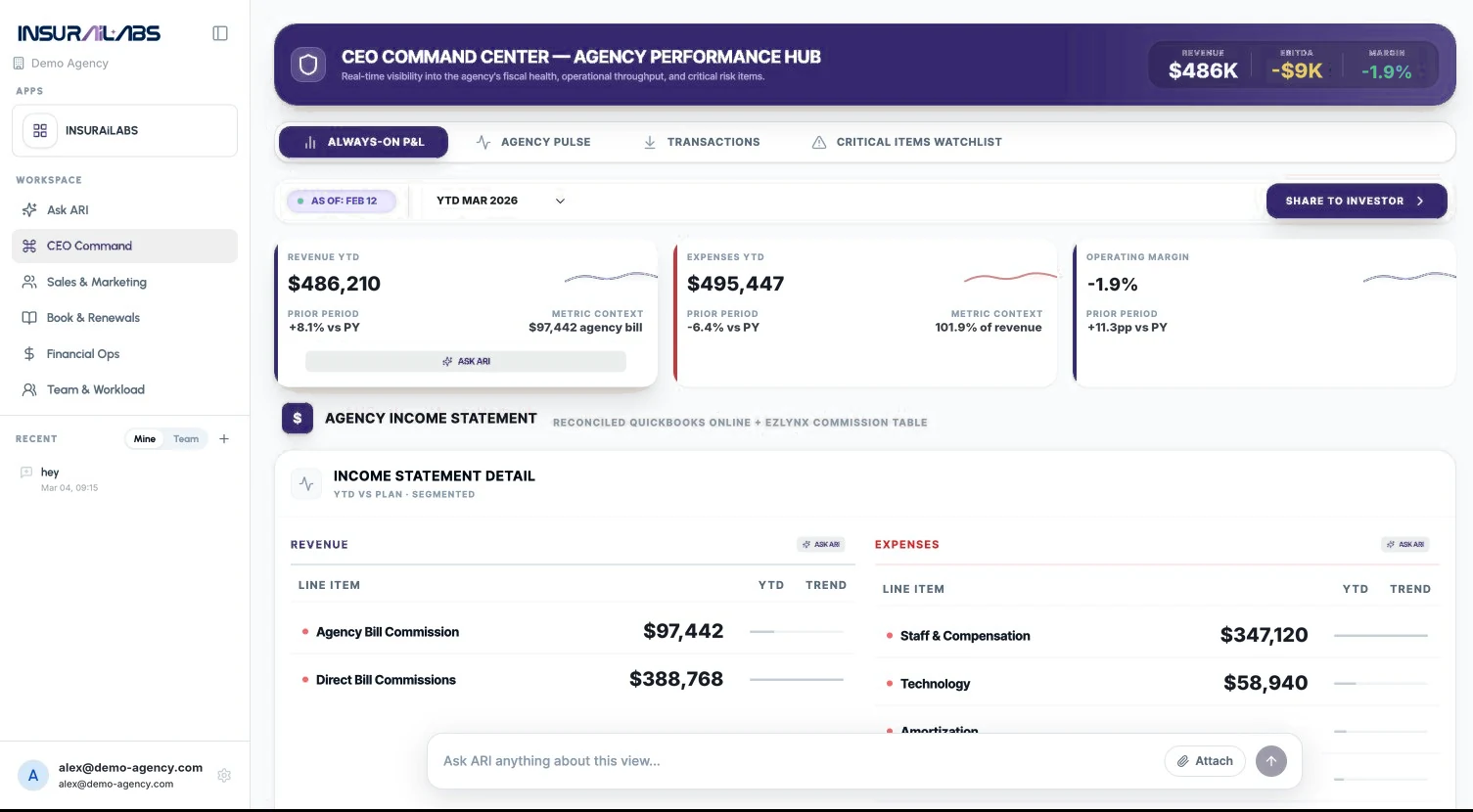
| # | Area | What you see | What you can do |
|---|---|---|---|
| 1 | As-of and period | AS OF date and period selector (e.g. YTD SEP 2026) | Change the period; check the as-of date before sharing |
| 2 | Share to Investor | Button at the right | Share a read-only snapshot of the P&L |
| 3 | KPI cards | Revenue YTD, Expenses YTD, Operating Margin with prior-period comparison and metric context | Click ASK ARI on a card to get an explanation |
| 4 | Agency Income Statement | Revenue and expense line items with YTD values and trend, from QuickBooks Online and EZLynx commission data | Read line items; use the ASK ARI chip on Revenue or Expenses to investigate |
| 5 | Producer P&L Waterfall | Each producer's share of agency revenue against a 50% concentration threshold | Watch for the Concentration Alert banner |
| 6 | Monthly trends | Revenue and margin by month | Spot seasonality and changes in margin |
Review the month's financial position
- Open CEO Command › Always-On P&L.
- Set the period selector to the period you want (for example the current year to date).
- Read Revenue YTD, Expenses YTD and Operating Margin, and compare with Prior period.
- Scroll to Agency Income Statement to see which revenue and expense lines drive the result.
- Click ASK ARI next to a line you want explained, or ask "What changed most versus last year?"
Investigate an expense line
- In Income Statement Detail › Expenses, find the line (for example Technology).
- Click the ASK ARI chip above the Expenses column, or type "Why is Technology so high?" in the Ask ARI bar.
- Open Transactions and search for the vendor names ARI mentions to see each payment.
Share the P&L with an investor
- Check the AS OF date and period are correct.
- Click Share to Investor.
- Follow the prompts to send the snapshot.
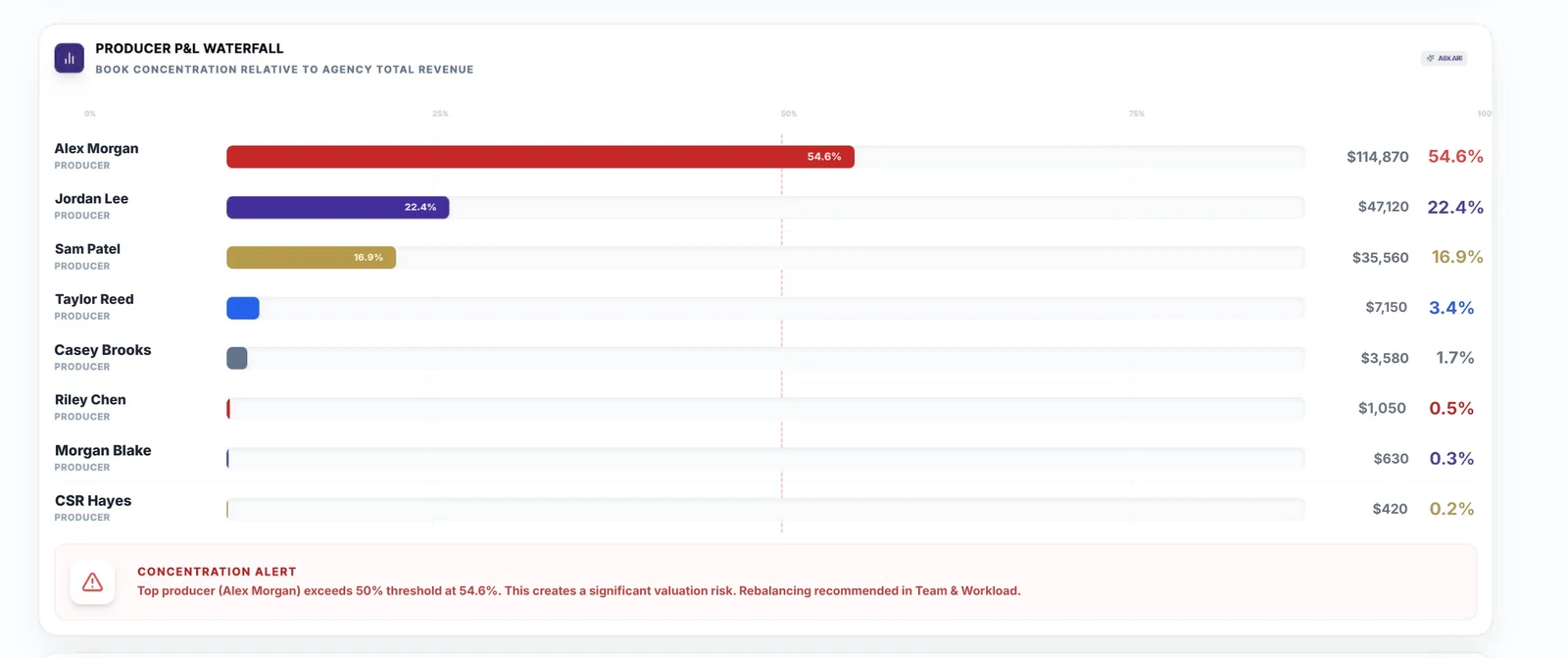
Good to know
The waterfall measures each producer's share of revenue. Team & Workload measures book share by active policies. The two percentages answer different questions and will not match.
Agency Pulse
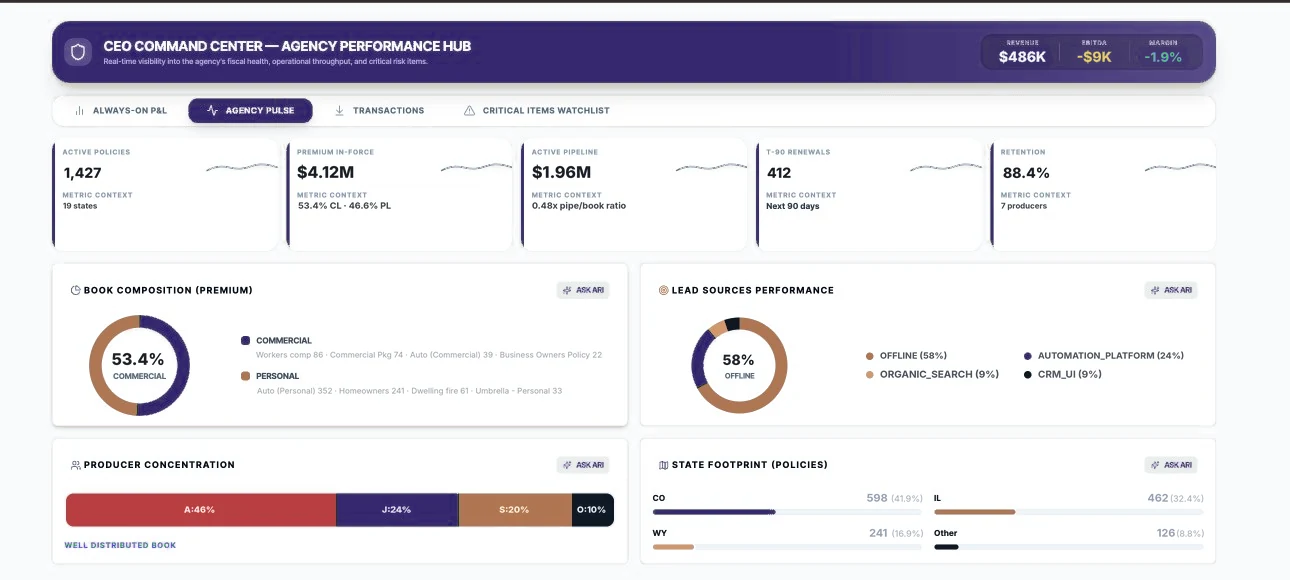
| # | Area | What you see | What you can do |
|---|---|---|---|
| 1 | KPI cards | Active Policies, Premium In-Force, Active Pipeline (with pipe-to-book ratio), T-90 Renewals, Retention | Read the metric context under each value |
| 2 | Book Composition (Premium) | Commercial vs personal split with the lines that make up each | ASK ARI to explore the mix |
| 3 | Lead Sources Performance | Share of business by lead source | See which sources drive new business |
| 4 | Producer Concentration | Book share by producer | Check that no single producer dominates |
| 5 | State Footprint (Policies) | Policies by state | See geographic concentration |
Transactions
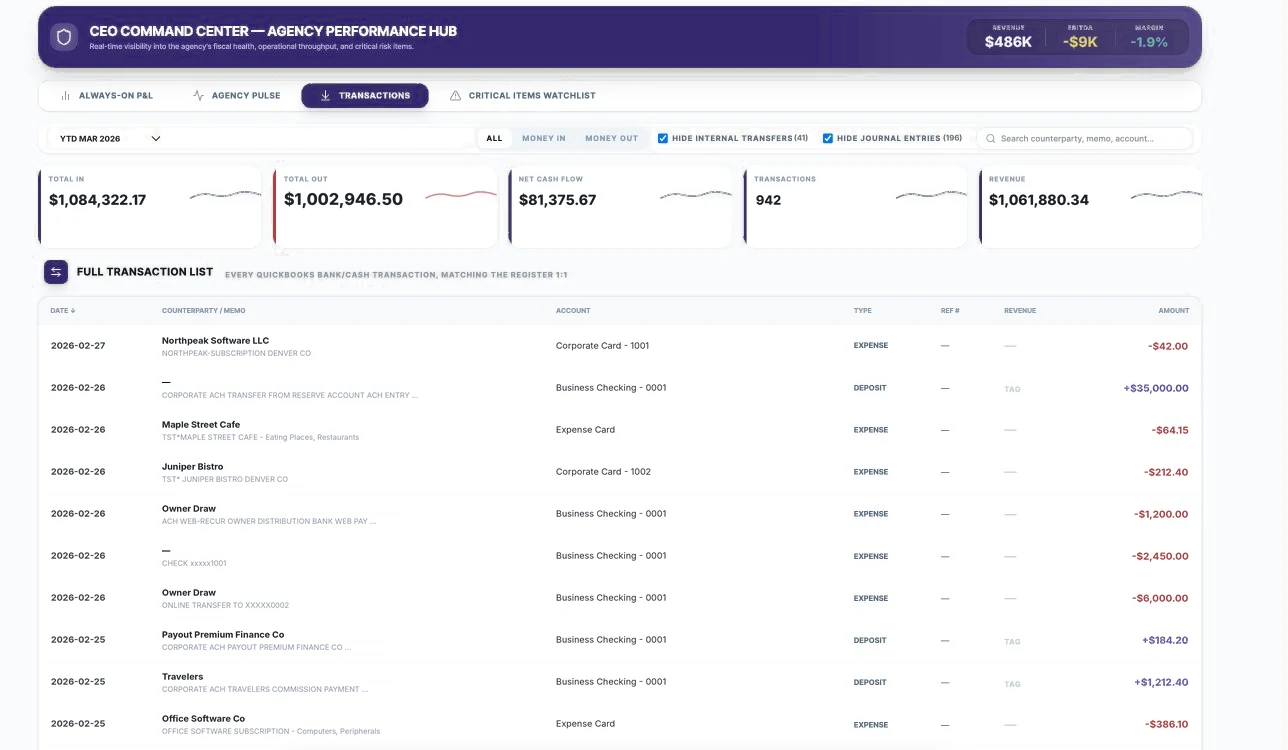
| # | Area | What you see | What you can do |
|---|---|---|---|
| 1 | Filters | Period, All / Money In / Money Out, Hide internal transfers, Hide journal entries, search | Focus on operational cash; search by counterparty, memo or account |
| 2 | Totals | Total In, Total Out, Net Cash Flow, Transactions, Revenue | Totals update with your filters |
| 3 | Full Transaction List | Date, counterparty / memo, account, type, reference, revenue tag, amount — matching the QuickBooks register | Sort by date; scan for unusual items |
Find a specific payment or deposit
- Open CEO Command › Transactions.
- Choose Money In or Money Out.
- Type the carrier, vendor or memo text in the search box.
- Adjust the period if the payment is older than the current selection.
TIP
Keep Hide internal transfers and Hide journal entries ticked when you want to see real operating cash. Untick them when reconciling to bank statements.
Critical Items Watchlist
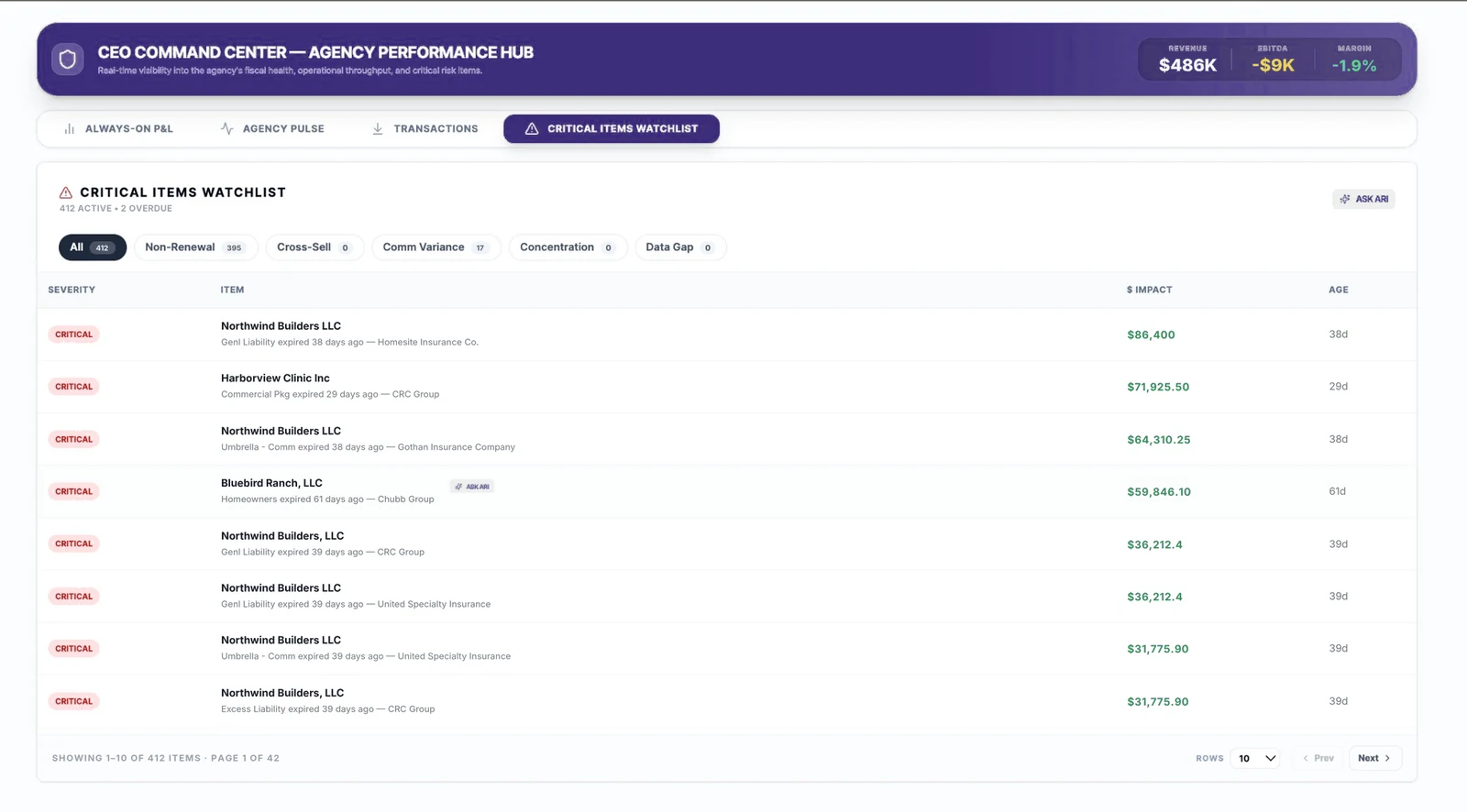
| # | Area | What you see | What you can do |
|---|---|---|---|
| 1 | Summary | Number of active and overdue items | A quick measure of how much needs attention |
| 2 | Category filters | All, Non-Renewal, Cross-Sell, Comm Variance, Concentration, Data Gap, each with a count | Click a category to filter |
| 3 | Item list | Severity, item (account, policy, carrier, reason), $ Impact, Age | Click ASK ARI on a row for context and next steps |
| 4 | Paging | Rows, Prev, Next | Show more items per page |
Run a morning triage
- Open CEO Command › Critical Items Watchlist.
- Start with All and look at Critical items with the highest $ Impact.
- Filter by Non-Renewal and check the oldest items first using Age.
- Click ASK ARI on an item to see the account context and suggested next step, then pass it to the owning producer or team.
Coming soon
- Assigning a critical item to an owner and tracking it to resolution.
- A freshness indicator on every number, and a drill path from each KPI to its source records.
- Plan vs actual on the P&L.