
Appearance
Financial Operations — Accuracy Layer
Make sure the agency is paid what it is owed: compare expected and received commission, manage receivables, forecast cash and process carrier statements. The header shows Comm YTD, Policies and Last Stmt (date of the latest carrier statement).
Used most by: Finance lead, agency owner / CFO, reconciliation team
Tabs: Commission Recon, AR Aging & Cash, Carrier Statements. Buttons on the right: period selector, Class Mapping, Monthly Close. The AUDIT-LOCKED badge shows that reconciled periods are protected.
Commission Recon
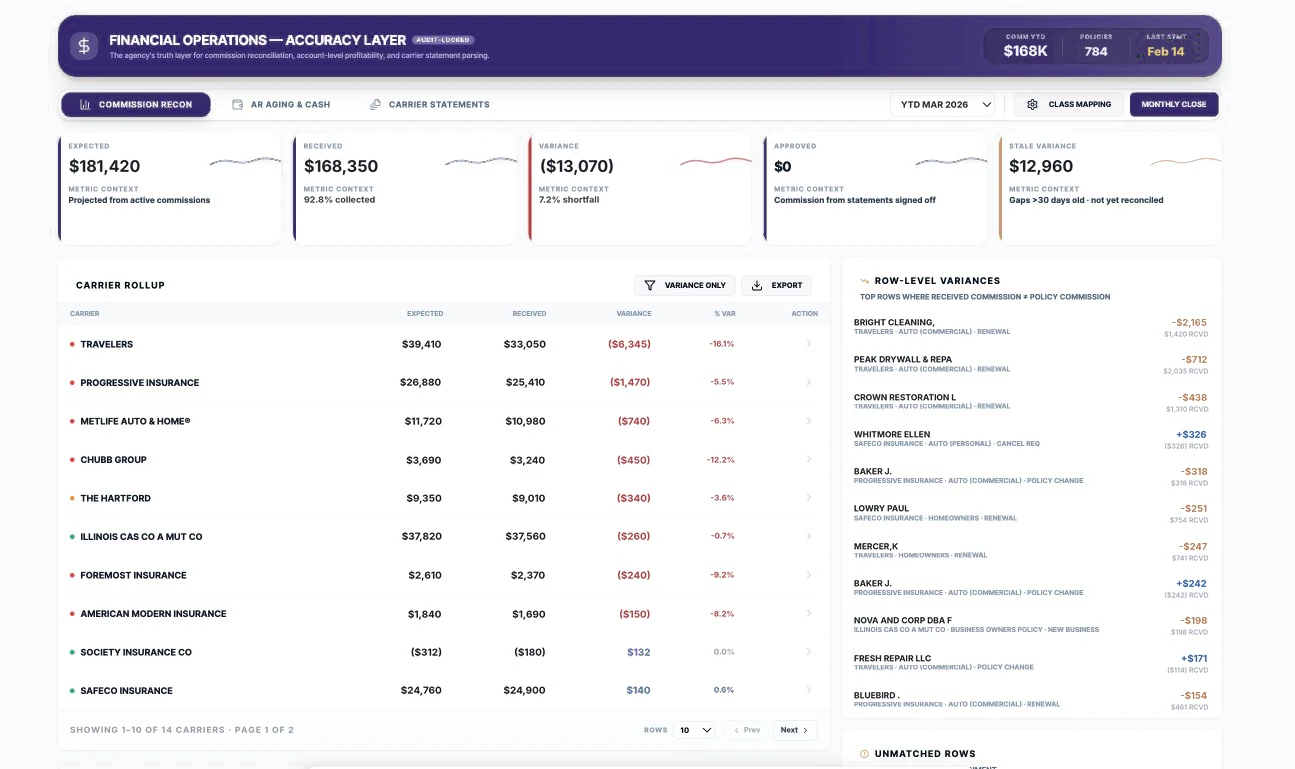
| # | Area | What you see | What you can do |
|---|---|---|---|
| 1 | KPI cards | Expected, Received, Variance, Approved, Stale Variance (gaps older than 30 days) | See the size of any shortfall |
| 2 | Carrier Rollup | Expected, received, variance and % variance by carrier | Variance Only filter, Export, open a carrier with the row arrow |
| 3 | Row-Level Variances | Individual policies where the statement differs from expected commission | Investigate the largest differences first |
| 4 | Unmatched Rows | Statement rows not yet matched to a policy | Resolve so they count toward received commission |
Find and chase commission shortfalls
- Open Financial Ops › Commission Recon and set the period.
- In Carrier Rollup, click Variance Only and sort by the largest negative variance.
- Open the carrier to see its rows, and check Row-Level Variances for the policies involved.
- Click Export to send the list to the carrier or your accounting team.
- Ask ARI: "Summarise the Travelers shortfall by policy and transaction type."
AR Aging & Cash
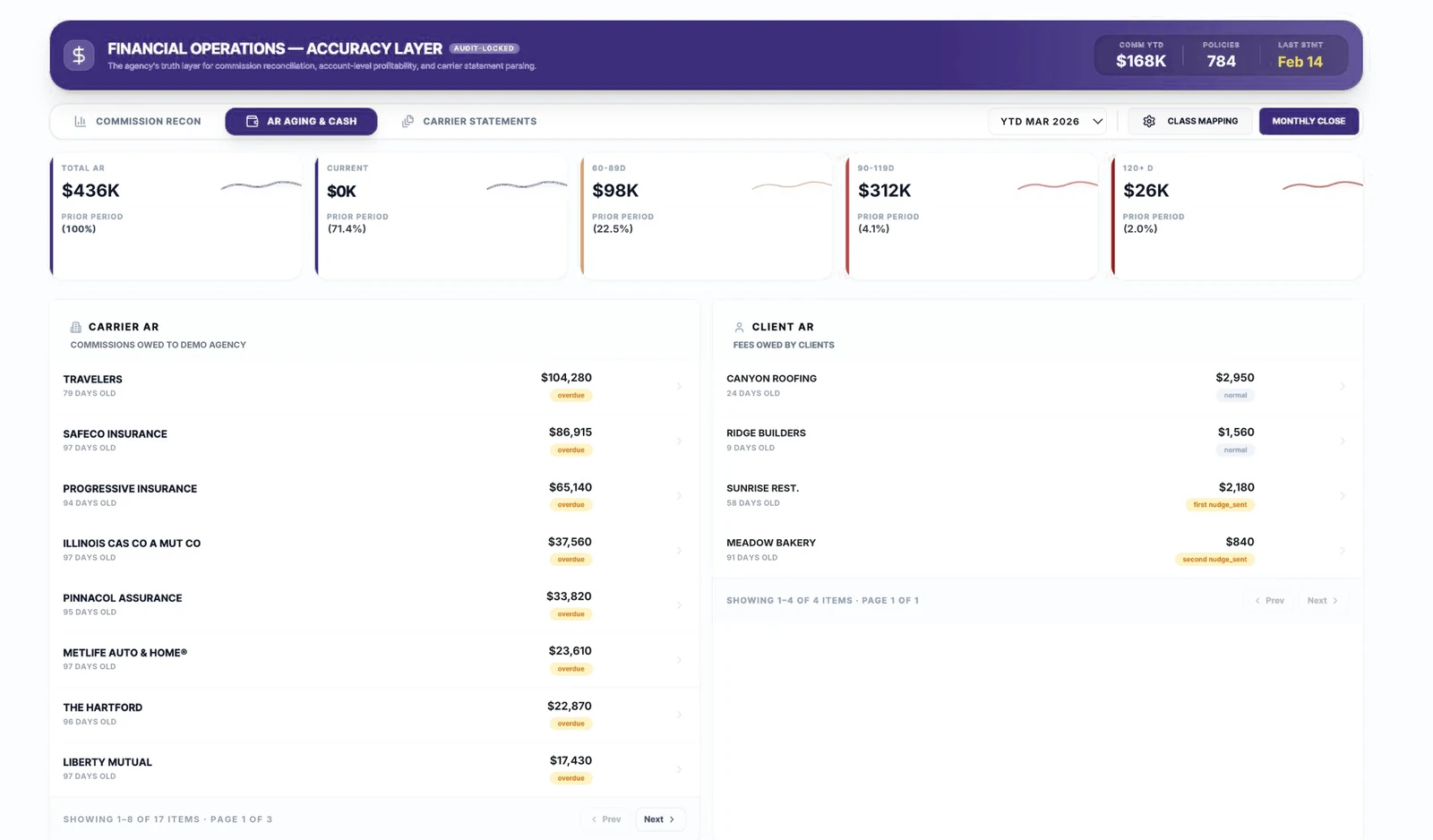
| # | Area | What you see | What you can do |
|---|---|---|---|
| 1 | Aging cards | Total AR, Current, 60–89D, 90–119D, 120+ D | See how old receivables are |
| 2 | Carrier AR | Commissions owed to the agency by carrier, with age and status | Open a carrier to see details |
| 3 | Client AR | Fees owed by clients, with age and nudge status (normal, first nudge sent, second nudge sent) | Track collection progress |
| 4 | 90-Day Cash Flow Forecast | Expected inflows by week from AR collections and renewals, total and Forecast Accuracy (MAPE) | View Model for details |
| 5 | High Priority Collections | Items 60+ days old with type, counterparty, amount, age, last nudge and status (e.g. Escalated, Dispute Queued) | Blast Nudges to remind them; Export CSV |
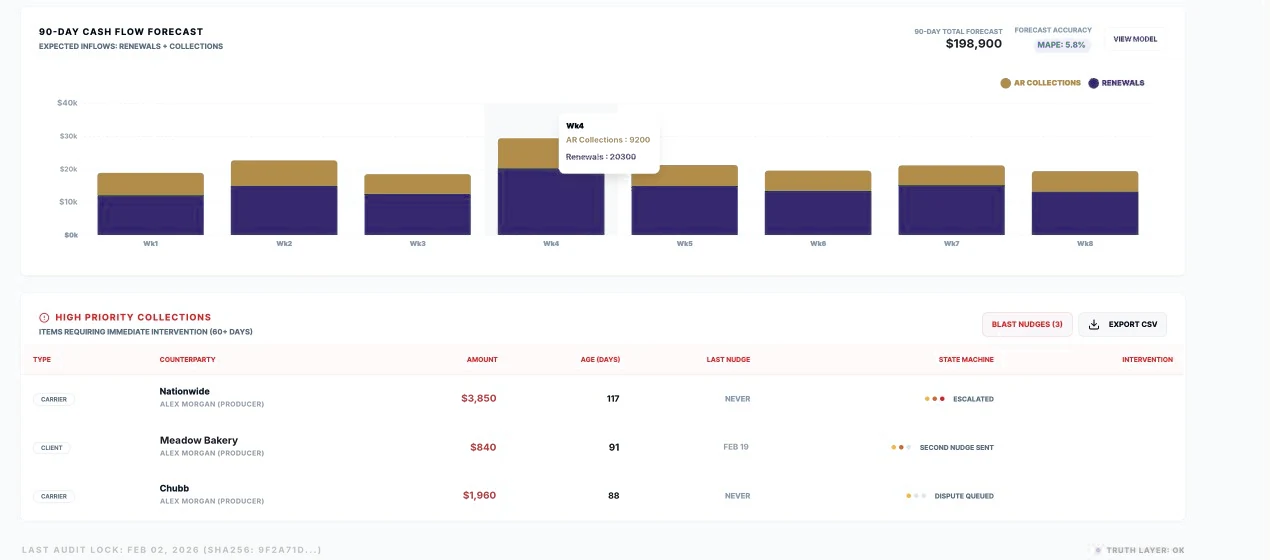
Run weekly collections
- Open Financial Ops › AR Aging & Cash.
- Review High Priority Collections, oldest first.
- Click Blast Nudges to send reminders to the listed counterparties, or contact them individually for escalated items.
- Click Export CSV if you need to work the list outside the platform.
- Check the forecast to see how collections affect the next weeks' cash.
Good to know
Blast Nudges contacts every counterparty in the list. Review the list first and remove anything in dispute.
Carrier Statements
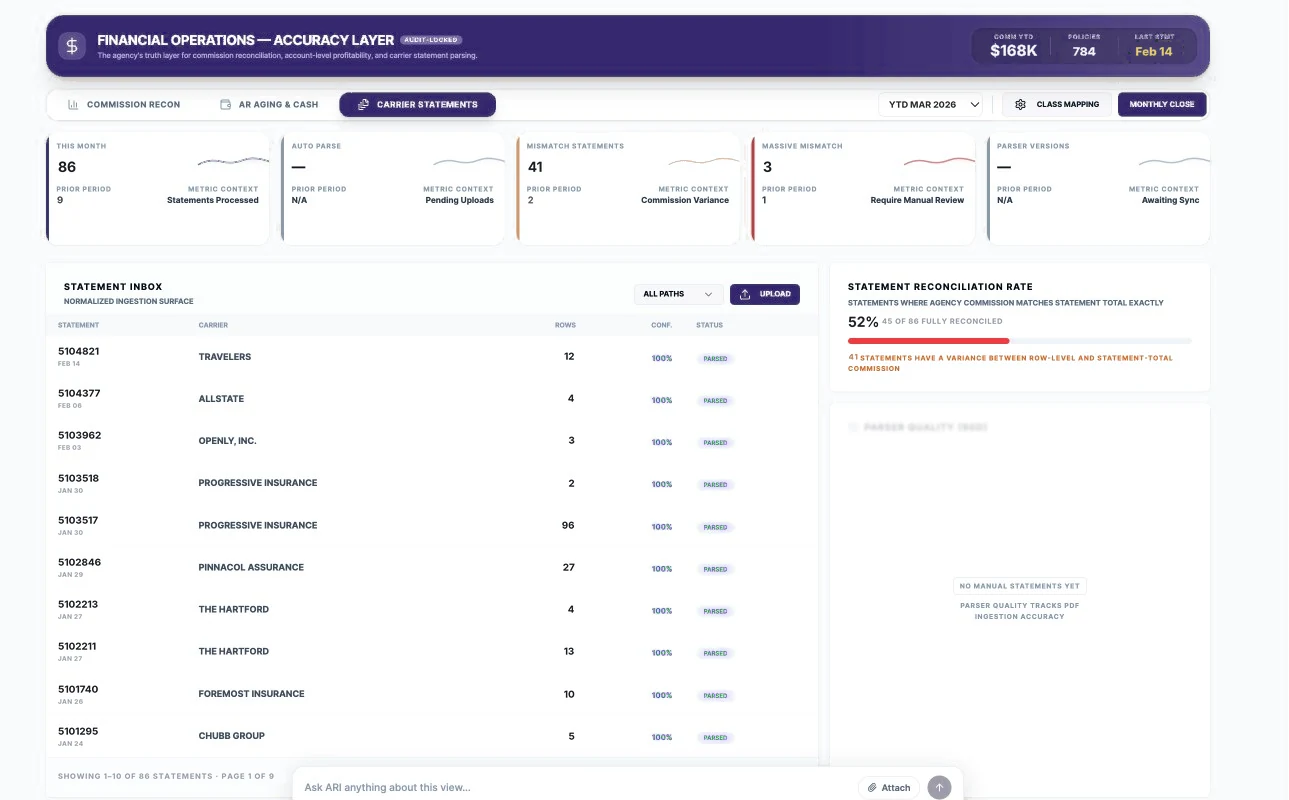
| # | Area | What you see | What you can do |
|---|---|---|---|
| 1 | KPI cards | This Month (statements processed), Auto Parse, Mismatch Statements, Massive Mismatch, Parser Versions | See volume and quality of processing |
| 2 | Statement Inbox | Statement number and date, carrier, rows, confidence (Conf.), status (Parsed) | All Paths filter; Upload to add a statement |
| 3 | Statement Reconciliation Rate | Share of statements whose commission matches the statement total exactly | Follow up on statements with a variance |
| 4 | Parser Quality / Drift Alerts | Accuracy of reading PDF statements and changes in carrier formats | Report repeated problems to your administrator |
Upload a carrier statement
- Open Financial Ops › Carrier Statements.
- Click Upload and choose the statement file from the carrier.
- Wait for the status to show Parsed and check the Conf. (confidence) value.
- Open Commission Recon to see the statement's effect on received commission and variances.
TIP
Upload statements as soon as they arrive; the header's Last Stmt date tells everyone how current reconciliation is.
Class Mapping
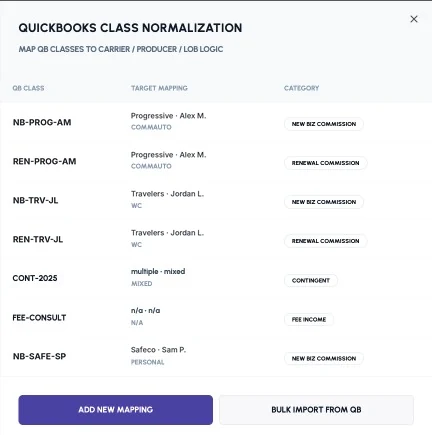
QuickBooks classes encode carrier, producer and commission type. Class Mapping translates each class into INSURAiLABS terms so P&L, producer revenue and reconciliation are correct.
Map a new QuickBooks class
- In Financial Ops, click Class Mapping.
- Click Add New Mapping.
- Enter the QuickBooks class, its carrier, producer and line of business, and its category (New Biz Commission, Renewal Commission, Contingent or Fee Income).
- Save. To load many classes at once, use Bulk Import from QB.
Good to know
If revenue appears under the wrong producer or category, an unmapped or mis-mapped class is the usual cause. Only finance or admin users should edit mappings.
Monthly Close
Monthly Close is the entry point for closing a financial period. A full guided close checklist is on the roadmap (below).
Coming soon
- Guided monthly close: checklist, sign-off, period lock and reopen with reason.
- Carrier statements accepted by email to a dedicated address, with automatic carrier detection.
- Manual match and override of statement rows with reason codes and approvals.