
Appearance
Getting started
This chapter covers signing in, the Home screen, how to move around, and the elements you will see on every screen.
Sign in
- Open your browser and go to the INSURAiLABS address provided by your administrator.
- Sign in with the work account your administrator set up for you.
- You land on Home, which greets you and shows your agency's name under the INSURAiLABS logo.
TIP
Use a desktop or laptop browser for day-to-day work; tables and pipelines are designed for screens 1280 pixels wide or more.
The Home screen
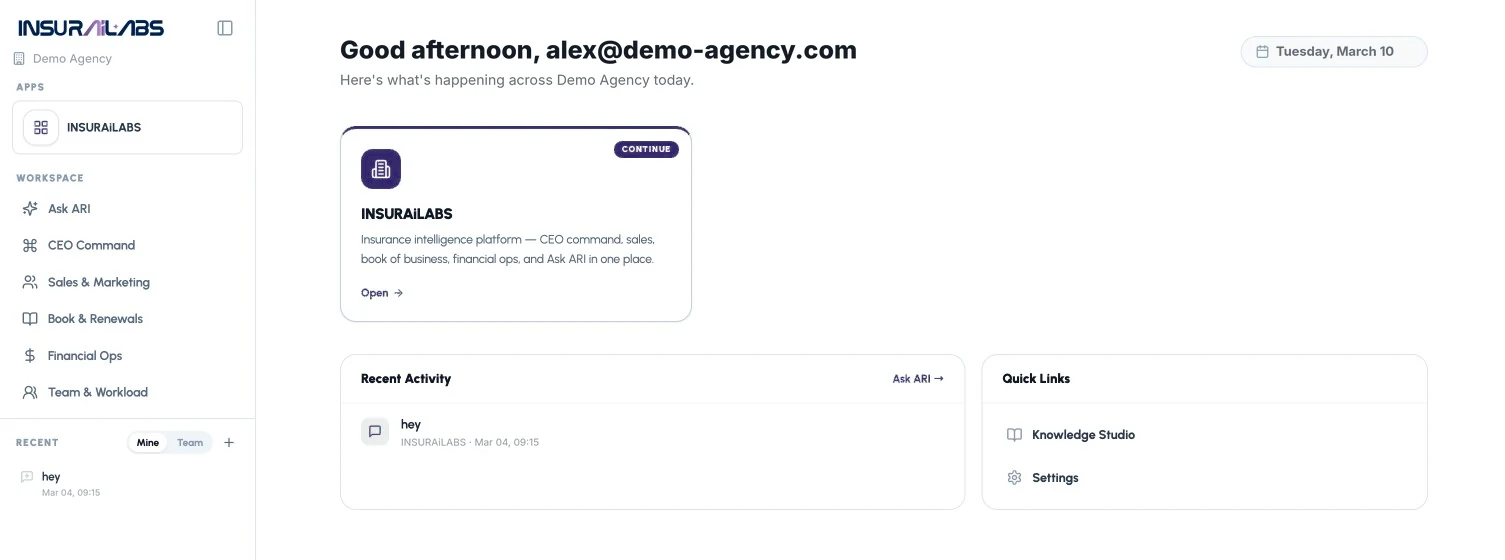
| # | Area | What you see | What you can do |
|---|---|---|---|
| 1 | Agency name | Your account, shown under the logo (your agency's name) | Confirms which agency's data you are looking at |
| 2 | Apps | A card for each app your agency uses, such as INSURAiLABS | Click Open on a card; CONTINUE marks the app you used last |
| 3 | Recent Activity | Your latest ARI conversations | Click one to reopen it; Ask ARI → starts a new one |
| 4 | Quick Links | Knowledge Studio and Settings | Open reference material and your settings |
| 5 | Date | Today's date | — |
Moving around
| Element | Where | What it does |
|---|---|---|
| Workspace menu | Left sidebar | Ask ARI, CEO Command, Sales & Marketing, Book & Renewals, Financial Ops, Team & Workload |
| Collapse sidebar | Icon next to the logo | Hides the sidebar for more room; click again to show it |
| Recent | Left sidebar, below the menu | Your ARI conversations; switch between Mine and Team; + starts a new conversation |
| Profile menu | Bottom of the sidebar | Your account, Knowledge Studio, Settings, Documentation (this guide) and Contact support |
| Module tabs | Below each module's header | Switch between views inside a module, e.g. Always-On P&L, Agency Pulse |
Anatomy of a module screen
| Element | What it is | How to use it |
|---|---|---|
| Header banner | Module name and two or three headline numbers (e.g. Revenue, EBITDA, Margin) | A quick read before you open a tab |
| Period selector | e.g. YTD SEP 2026 with a drop-down | Change the period the whole tab uses |
| As-of label | e.g. AS OF: AUG 10 | Shows how current the data behind the view is |
| KPI cards | A value, a sparkline, a comparison (Prior period) and Metric context | Read the context line: it says what the number counts |
| ASK ARI chips | Small buttons on cards, tables and rows | Ask ARI about that specific item; it opens with the item as context |
| Ask ARI bar | "Ask ARI anything about this view…" at the bottom of every screen | Type a question about what you are looking at; Attach adds a file |
| Tables | Search box, sort and filter drop-downs, Rows selector, Prev / Next | Narrow the list, change page size, page through results |